How to Install Free Fire Advance Server APK
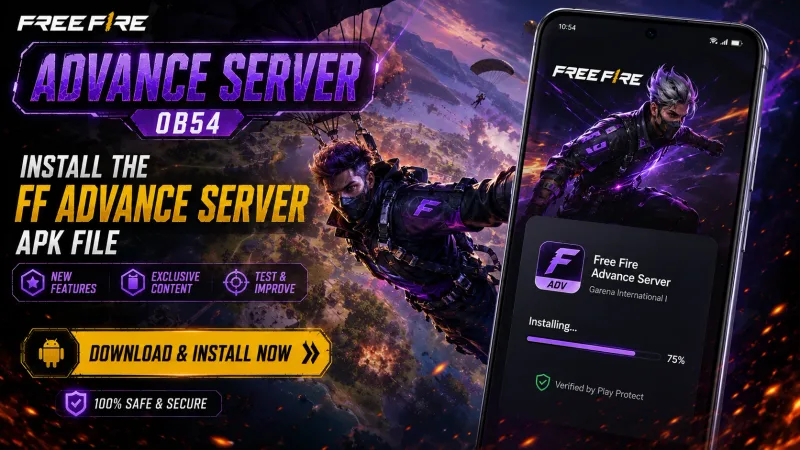
Install the Free Fire Advance Server APK for the closed OB54 cycle (V68.54.0). Registration is closed, and the live global update is OB55. Follow these steps, then confirm the version and SHA-256 on the Download page.
- Last Updated
Last updated: September 2026 · Reviewed for OB54 · Independent informational site (not Garena)
Quick Answer
- Is Advance Server a separate app?
- Yes. It installs as its own testing client, separate from the standard Free Fire app, using a dedicated APK for the current cycle.
- Does it replace Free Fire?
- No. The Advance Server APK runs alongside or instead of the regular app depending on Garena's instructions — it does not overwrite your live Free Fire install.
- What Android version is confirmed?
- The confirmed minimum for the current build is Android 5.0+. Recommended specs are listed only once officially confirmed.
- Does installation guarantee login access?
- No. A successful install does not by itself grant login — you still need completed registration and, for most cycles, a valid activation code.
- Should I uninstall the live game?
- Not necessarily. Follow Garena's instructions for the current cycle — the Advance Server APK is typically designed to install as a separate testing client.
What Does Installing the Advance Server APK Involve?
Installing the Advance Server APK means sideloading Garena's official beta testing package onto a supported Android device, outside the Play Store. It requires temporarily allowing unknown sources, downloading the current build for the active OB cycle, and completing first-launch resource downloads before signing in with a registered account.
Before You Install
Download only the latest Free Fire Advance Server APK for the current testing cycle. Older builds often fail to connect after a new OB window opens, so verify the version on our Download page before you begin.
Make sure registration is complete for the active cycle when registration is required. Many releases also expect an activation code after install, so have your account ready before launching the Advance Server app.
Confirm Android compatibility, free storage space, and a stable internet connection. Installation needs enough room for the APK and first-launch resource downloads, and a reliable connection helps avoid incomplete installs.
Installation Requirements
Check these basics before installing the Advance Server APK on your Android device.
- Android Version Android 5.0+ Your device must meet the minimum Android version for the current build.
- Available Storage 2 GB free Free space for the APK file and first-launch downloads.
- RAM 2 GB Enough memory for stable install and gameplay during testing.
- Stable Internet Required Needed for download, install verification, and first launch resources.
- Registered Account Recommended Use the same supported account prepared during Advance Server registration.
- Activation Code If required Many cycles need an activation code after install before login succeeds.
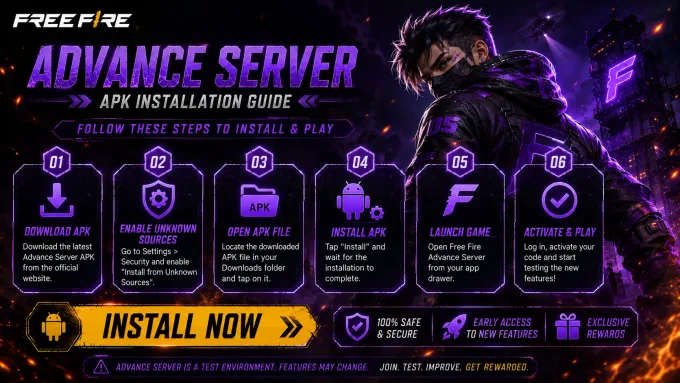
Step-by-Step Installation
Follow these steps on a supported Android device. Exact system prompts can vary by manufacturer and Android version.
-
Download the APK
Get the latest Free Fire Advance Server APK from our Download page for the current testing cycle.
-
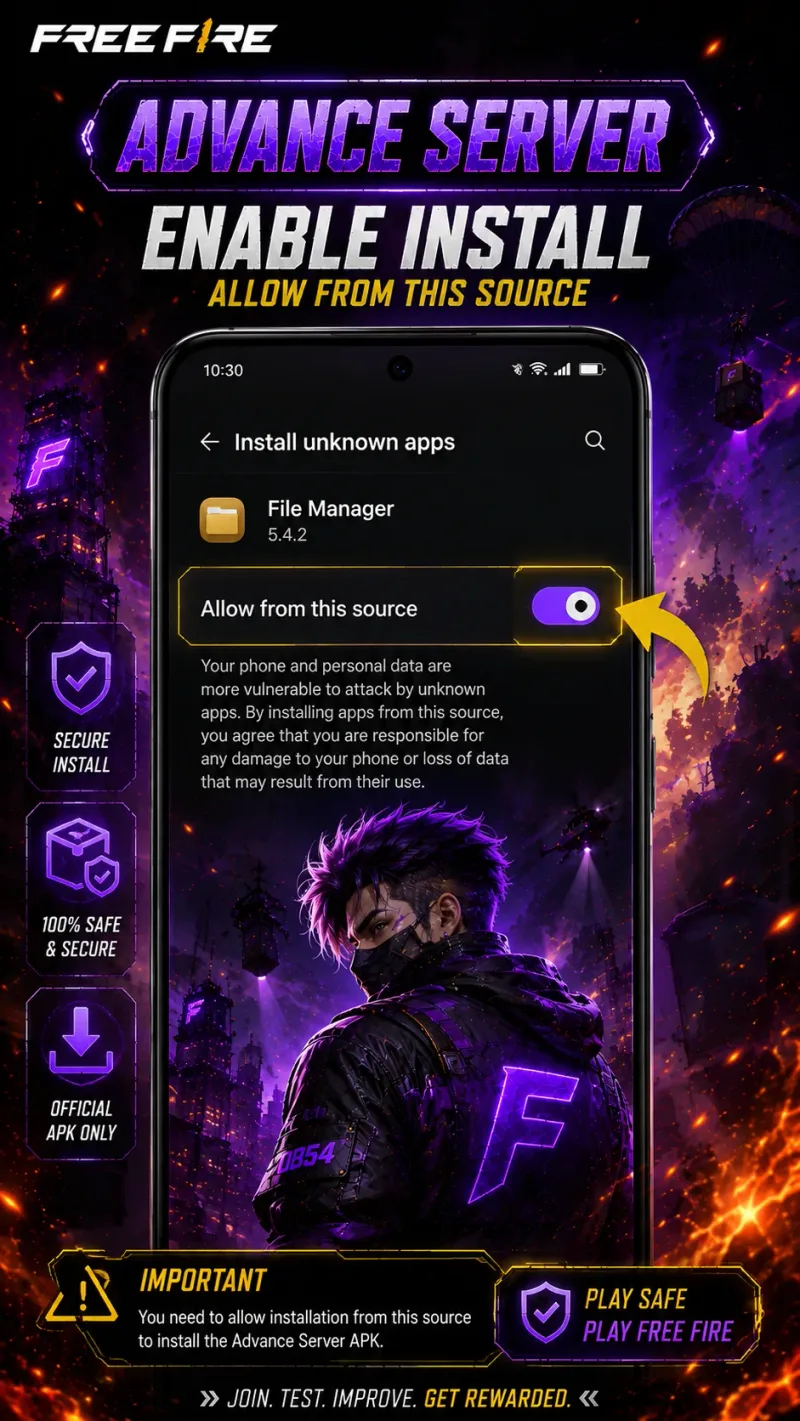
Allow installation from unknown sources
If prompted, allow installs from your browser or file manager for this installation only.
-
Install the APK
Open the downloaded file, confirm the package details, and complete the Android install flow.
-
Launch the game
Open the Advance Server app after installation finishes and wait for the initial loading screen.
-
Log in with your registered account
Sign in with the same supported account used for registration on the current cycle.
-
Enter the Advance Server
Complete activation if required, then enter the testing environment when the server is available.
First Launch
The first launch after installation often includes longer loading times while the app prepares local data and downloads additional resources for the current Advance Server build.
Stay connected during this stage. Interrupted downloads can cause incomplete setups, repeated loading screens, or failed entry into the testing environment.
After resources finish, log in with your registered account. If the cycle requires activation, verify your activation code before expecting full Advance Server access.
Server availability can still depend on the testing schedule. Even with a successful install, login may fail outside an active window or before activation is complete.
How to Update the APK
Each new Advance Server testing cycle may publish a fresh APK. When a new OB window opens, download the latest verified build instead of relying on an older install from a previous cycle.
In many cases you can install the new APK over the previous Advance Server app. If Android reports a package conflict or parse error, uninstall the outdated Advance Server build first, then install the current file.
After updating, confirm the version matches the latest release details on our Download and Latest OB Update pages. Using the wrong build is a common reason players cannot enter the newest testing cycle.
Common Installation Errors
These are the installation issues players hit most often with the Advance Server APK.
-
APK Not Installing
Re-download the current APK — installs usually fail from blocked sources, low storage, or an incomplete file.
Installation can fail when unknown sources are blocked, storage is low, or the downloaded file is incomplete. Re-download the current APK and retry the install prompt.
Learn More -
Parse Error
Download the APK again and confirm your Android version — a parse error usually means a corrupted or incompatible file.
A parse error usually means the APK is corrupted, incomplete, or incompatible with your Android version. Download again and confirm device requirements.
Learn More -
App Not Opening
Check that your build is current and device meets minimum requirements — outdated builds often close on launch.
The app may close on launch if the build is outdated, resources failed to download, or the device does not meet minimum requirements for the cycle.
Learn More -
Installation Blocked
Enable the one-time install permission for your browser or files app — Android security settings often block sideloaded installs.
Android security settings can block sideloaded installs. Enable the one-time install permission for your browser or files app, then return to the APK.
Learn More -
Storage Full
Clear device storage first — installation and first-launch downloads cannot finish without enough free space.
Without enough free space, Android cannot finish installation or first-launch downloads. Clear storage, then install the latest Advance Server APK again.
Learn More -
Package Conflict
Uninstall the previous Advance Server app first — conflicts happen when an older package remains installed.
Conflicts happen when an older Advance Server package remains installed. Uninstall the previous Advance Server app, then install the current APK cleanly.
Learn More
Installation Safety Tips
Use trusted download sources that clearly identify the current Advance Server version, package details, and testing cycle. Avoid random mirrors or renamed files with no verification context.
Do not install modified, cracked, or “premium unlocked” APKs. Unofficial builds increase malware risk and often fail official Advance Server login checks.
Allow unknown sources only when needed for the install, and avoid leaving broad install permissions enabled permanently on your device.
Remove outdated Advance Server APKs after a cycle ends, and check official announcements before downloading the next build so you always install the correct release.
Key Takeaways
- The Advance Server APK installs as a separate testing client and does not overwrite your live Free Fire app.
- A successful install alone does not grant login — registration and, usually, activation are still required.
- Confirm your device meets the minimum Android requirement (Android 5.0+) before installing.
- Always use the APK version matching the current OB cycle; older builds often fail after a new window opens.
- Nothing created inside the Advance Server build carries over to Free Fire MAX or the live game.
Frequently Asked Questions
How do I install the Free Fire Advance Server APK?
Why won't the APK install?
Is Unknown Sources required?
Can I install over an older version?
Should I uninstall the previous APK?
Can I install on iPhone?
Why is installation blocked?
How do I update the APK?
Is the APK safe?
What if installation fails?
Does installing the APK affect my Free Fire MAX progress?
Will progress from this install carry over later?
Sources & Verification
Verification: Installation requirements and version fields on this page are synced with CURRENT_OB and reviewed each time a new Advance Server build is published.
This website is an independent informational guide. It is not operated by, affiliated with, or endorsed by Garena.
Ready to Install?
Download the latest verified APK and follow the installation steps to prepare your device for the current Advance Server testing cycle.